ACCT
2101 (F2F)
Spring 2026
START HERE
Instructor: Penelope
Lyman
Email: plyman@ung.edu
|
Office Hours Virtual (Teams) or F2F: Re Teams: Open Teams and click on the Calls
tab. Type my name in the Search box and initiate a call during office hours. |
|
|
M 1:00pm
– 2:30pm |
F2F
Oconee Room 592 SRC |
|
W 12:00pm – 1:30pm |
F2F Oconee Room 592 SRC |
|
R 11:00am – 2:00pm |
Virtual (Teams) only |
WELCOME!
Accounting is the language of business. This
course will provide you with an exciting opportunity to become fluent in a
language that will not only help you achieve success in your career; it will
also help you become more skilled in managing your personal finances.
Please do not hesitate to contact me if you
have questions.
|
January 12, Monday |
|
|
Step 1 |
Per the syllabus, you MUST have access to a computer with a
RELIABLE Internet connection. Administrative stuff:
o
You are responsible for reading the syllabus. o
Print out the Assignment Sheet at the end of the syllabus
and mark your calendar with the due dates. All Cengage course assignments and
Cengage exams are due on the assigned day by 11:00pm. No late submissions will be accepted. o
The D2L Midterm and Final exams will be taken in class
with your laptops during regularly scheduled class times. o
Unless you have been excused administratively by UNG for
documented health reasons, you will receive a zero for ANY missed assignment
or exam not completed per the Assignment Sheet due date/time. o
Email me if you have any questions. o
Do NOT use
the email tool in eLearning when you send me an email. I only
check emails sent to plyman@ung.edu. o
If you do send an email
query, check YOUR email for my response. o
I might need to contact
you by phone. The last 4 digits of my home office phone are 5909. If you see
those numbers, you know it’s not a telemarketer.
|
|
Step 2 |
More
administrative stuff:
o
Students who do NOT complete the Mandatory Attendance
Quiz by Wednesday, January
14, 11:00 p.m. will be reported as absent during roll verification
and will be withdrawn from the course, receiving a W for the course. o
The quiz is NOT graded. Note: One of the quiz questions
is open-ended, so the score will not be 100%. Again, the quiz is NOT graded,
but it IS REQUIRED.
|
|
Step 3 |
Last part of the administrative stuff. This
part is REALLY important. At this point you should have read the
syllabus AND completed the Mandatory Attendance Quiz in D2L. If you have not
done both, then stop, and go do them now. Assuming Steps 1 and 2 are complete:
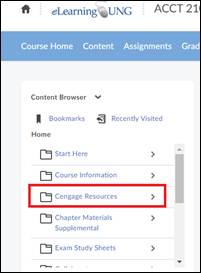
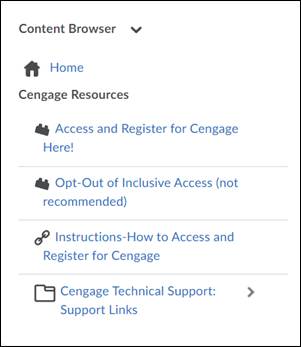
(Per the instructions, you will be
registering for Cengage through D2L. You
will not need a course key, and
you will NOT need an Access code UNLESS you Opt-Out of Inclusive Access.) FYI There is a generic publisher video that
shows you how to register under the Cengage Technical Support link. Assuming
you read the instructions:
NOTE: You can use the Access and Register for Cengage Here! link in D2L anytime to
access your CengageNOW assignments. FYI
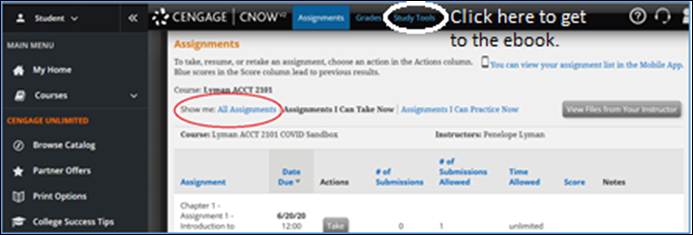
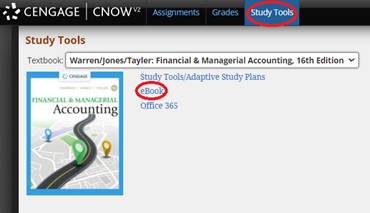
Access to the eBook for the course is available on the Study Tools page. See
the link on the top navigation bar shown below (circled in white).
At
this point, we’re ready to begin the accounting “stuff.”
|
|
Step 4 |
FYI
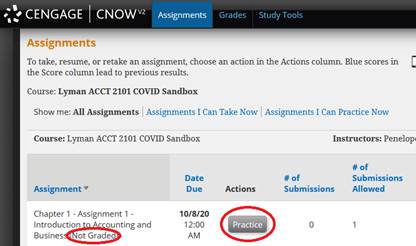
The default view of your CengageNOW Assignments is
by Date Due. Since Assignment 1 for each chapter is available until the end
of the semester, it will probably be at the end of the list of assignments.
You can reorder the view by clicking on the Assignments heading to view the
assignments in alphabetical order. Assuming
you are in CengageNow and the Assignments window is
open.
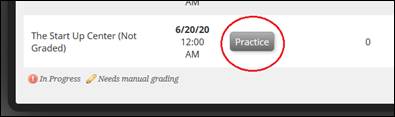
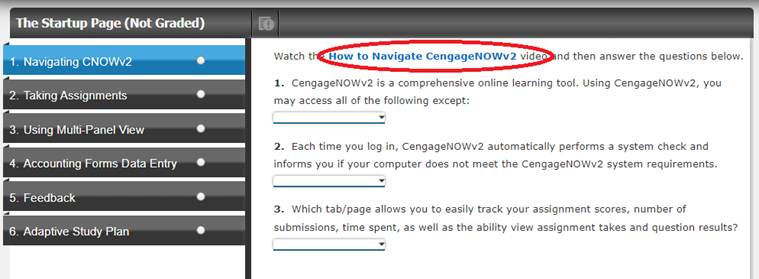
The activities in the Start Up Center are not
required; however, they are excellent resources for learning how to
navigate the CengageNow platform.
Note: Weekly learning objectives that are
measurable and consistent with the course-level objectives above may be
viewed at http://faculty.ung.edu/plyman/2101/CourseInformation/2101_LearningObjectives_16e.pdf or opened from the
Content tab in eLearning under the Course Information topic. |
|
Step 5 Assn 1 ASPs |
Assignment
1 Adaptive Study Plans (ASPs) for each chapter: Assignment
1 is not graded, but you should spend at least 30 minutes working
through the ASP activities BEFORE you start Assignments 2 and 3. This
interactive learning tool will take you through the chapter providing videos,
interactive exercises, concepts, terminology, examples, etc. The ASP is a
very user-friendly way to learn about the material in each chapter. Alternatively,
if you do not want to work in the ASP, you can read Chapter 1 in the
eBook/textbook by clicking on the Study Tools and clicking on the eBook link (pic shown in step 3). Before
you start Assignments 2 and 3, you should complete the Assignment 1 ASP or
read the eBook chapter (or both). Instructions
below assume you wish to take advantage of the learning opportunities in the
ASP.
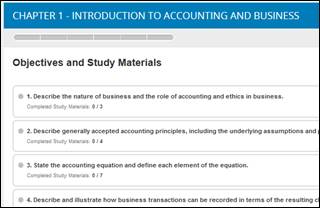
An Objectives and Study Materials window “should” open for
Chapter 1. Scroll down past italics. However,
a “Take Assessment” window “might” open instead (see below in italics). --If the "Take
Assessment to check your prior knowledge window" opens, click OK
for #1 and #2; then, click OK, Let's Get Started. --You don't have to take
the Pre-Test. Just scroll down and click I'm Done. Then click, Yes,
I'm done. This is not a graded assignment. You're just trying to get to
the interactive Adaptive Study Plan. --In the Pre-Test Summary
window, at the top right click Improve Score.
--For each objective,
click Get More Help. That will open the ASP Objective contents (shown
on the next page).
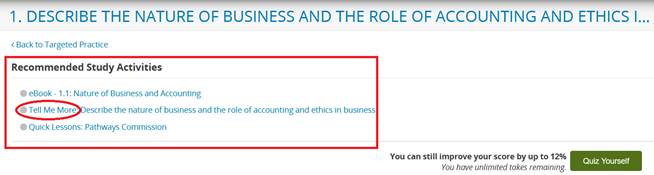
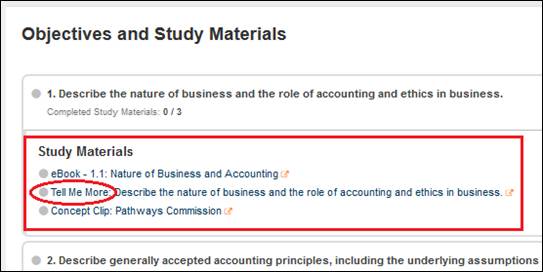
--For Objective 1 in
Chapter 1 (Describe the nature of business and the role of accounting and
ethics in business), after you click Get
More Help, you should see
--Click Tell Me More
(circled in red above) --See
below the next two images starting with “For interactive learning, click on
the Tell Me More link.” --Remember to only use the
Save and Exit button for all chapters' Assignment 1.
(Do NOT click the Submit Assignment for Grading button for any chapter Assignment 1.
It is not a graded assignment, so you will not be able to reenter without my
assistance if you submit Assignment 1 for grading.)
FYI You can also
access the ASPs under the Study Tools on the top navigation bar (to the right
of Assignments and Grades. Be sure to click Adaptive Study Plans, not Study Tools. |
|
Step 6 Assn 2 Basic Exercises |
FYI
Assignment 2 may be completed tomorrow if you want to take a break. Be
advised, however, it will be easier to take the Chapter 1 Assignment 2 after
finishing the ASP on day 1 (Monday) because the information should be
(theoretically) fresh in your mind.
Assignment
2 in every chapter is based on the Basic Exercises section in your text. The
questions in Assignment 2 will be the same as the book with different numbers
(where solving questions is needed). Note:
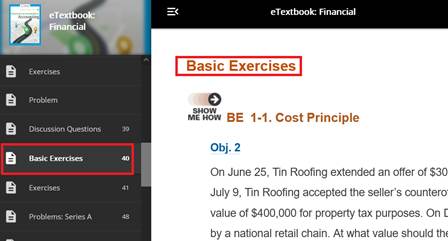
Hardcopy textbook and eBook page numbers are not necessarily the same. Shown
below from page 40 of your eBook is an example of the first question you will
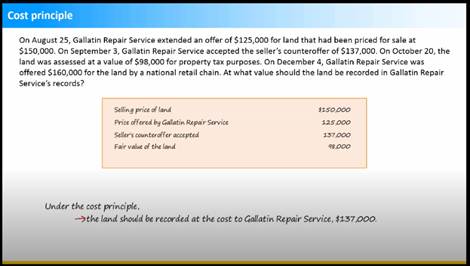
see when you start Assignment 2. (Notice
that it looks just like the ASP you worked in Chapter 1’s Show Me How: Cost
Principle—another good reason to work through each task in the ASP chapter
objectives.)
When
completing a task like the Income Statement, I used copy and paste where
possible to enter account names and labels. It kept me from making spelling
errors.
o
All work in chapter Assignments 2 will be given 3 attempts, and you can check your work in each attempt 3
times. o
Each attempt will have different numbers than the
previous attempt. o
If you get stuck on one question, move on to the next
question. Try to complete as much as possible of the work assigned during
each attempt. o
If you use up all your “check your work” opportunities
for a particular attempt, you may still change your numbers before you
“submit” your work.
o
If you click Submit (by accident) before you complete all
the work in an assignment attempt, you will have to start over (assuming you
have another attempt available). o
Your highest score on all attempts for a chapter
Assignment 2 will be your score in the gradebook. o
Per the syllabus, students who work at home are
responsible for their own Internet connection. No
excuses will be accepted for not meeting exam or assignment deadlines due to home
computer hardware or software problems and/or Internet connection problems.
You should develop a backup plan and test it in case your hardware, software, or Internet
connection stops working. o
Unless you have been excused by UNG for documented health
reasons, THERE IS NO MAKE-UP OPTION for any Cengage assignment. You will
receive a ZERO for any assignment not completed by the due date/time. No
exceptions.
o
It is
YOUR responsibility to check your grade in the D2L gradebook after you
submit, but BEFORE the due date, to make sure the score for a chapter
assignment or exam exists and is correct. o
Let me know ASAP if you do not see your grade
or if there is an error in the D2L gradebook before the due date. o
You have one week after an assignment’s due date to email
me if you have any questions about your performance or score for that
assignment. o
Your grade in the course will be based on
your D2L gradebook. Per the syllabus: Cengage does NOT support access to their
systems with a cellular connection or with a cellphone or tablet device. It
may work, but they do NOT support it. They recommend a stable Wi-Fi
connection with a laptop or desktop computer. OK, now would be a good time to take a break. |
|
January 13-15, Tuesday-Thursday |
|
|
January 14, Wednesday Per
the syllabus, if you haven’t completed the Mandatory Attendance Quiz by
January 14, 11:00pm, you will be administratively withdrawn from the class. |
|
|
Step
7 Assn 3 Exercises |
You
need to pace yourself. I recommend that you do a little each day and always
refer back to the ASP for reinforcement. DON’T
WAIT UNTIL THE LAST MINUTE TO START YOUR CENGAGE ASSIGNMENTS OR EXAMS.
Getting started early is your best option in case you experience bad weather,
Internet connection problems, hardware failure, etc. As
I said in Step 5, your first assignments (Chapter 1 Assignments 2 and 3) are
due on Thursday, January
15, by 11:00 p.m. Per the syllabus, no late assignments are accepted. I
assume you have finished Assignment 2. If not, go back to Step 6 above and
complete Assignment 2 before starting Assignment 3. Assignment
3 in every chapter (except Chapter 7) is based on the exercises and problems
sections of your textbook. The activities in Assignment 3 will be the same as
the book with different numbers (where solving questions is needed).
o
All work in chapter Assignments 3 will be given 2 attempts, and you can check
your work in each attempt 3 times. o
Each attempt will have different numbers than the
previous attempt. o
If you get stuck on one question, move on to the next
question. Try to complete as much as possible of the work assigned during
each attempt. o
If you use up all your “check your work” opportunities
for a particular attempt, you may still change your numbers before you
“submit” your work.
o
If you click Submit (by accident) before you complete all
the work in an assignment attempt, you will have to start over (assuming you
have another attempt available). o
Your highest score on all attempts for a chapter
Assignment 3 will be your score in the gradebook. o
Per the syllabus, students who work at home are
responsible for their own Internet connection. No
excuses will be accepted for not meeting exam or assignment deadlines due to home
computer hardware or software problems and/or Internet connection problems.
You should develop a backup plan and test it in case your hardware, software, or Internet
connection stops working. o
Unless you have been excused by UNG for documented health
reasons, THERE IS NO MAKE-UP OPTION for any Cengage assignment. You will
receive a ZERO for any assignment not completed by the due date/time. No
exceptions. Again,
per the syllabus: Cengage does NOT support access to their systems with a
cellular connection or with a cellphone or tablet device. It may work, but
they do NOT support it. They recommend a stable Wi-Fi connection with a
laptop or desktop computer.
o
It is YOUR
responsibility to check your grade in the D2L gradebook after you submit,
but BEFORE the due date, to make sure the score for a chapter assignment or
exam exists and is correct. Give D2L a
few minutes to sync with the Cengage gradebook. o
Let me know ASAP if you do not see your grade or if there
is an error in the D2L gradebook BEFORE the due date. o
You have one week after an assignment’s due date to email
me if you have any questions about your performance or score for that
assignment. o
Your grade in the course will be based on your D2L
gradebook. Great!! You’ve completed all assigned work
for Chapter 1 that is due on Thursday—hopefully early! Please do
not wait until Thursday evening to get started. My response to email inquiries
is promised within 24 hours. Per the syllabus Assignment Sheet, Chapter 1
Assignments 2 and 3 are due by 11:00pm on January 15. Again, no late
assignments are accepted. Now that you have got the hang of the
Assignments, you should repeat Steps 5-7 for each chapter. The exception will
be the even-numbered chapters which will also include an exam in CengageNow covering the previous 2 chapter materials
(e.g. Exam 1 Chapters 1&2). See below for more information about the
exams. |
|
Step
8 |
I
assume you have completed Assignments 1, 2, and 3 for Chapter 1 and checked
your grade in D2L for Assignments 2 and 3.
|
|
|
January 16-22 Friday-Thursday
|
|
Step
9 |
CengageNOW Exam(s)
|
|
|
Per
the syllabus Assignment Sheet, Chapter
2 Assignment 2 and Assignment 3 AND Exam 1 (Chapters 1&2) must be
submitted for a grade by Thursday, January
22, 11:00pm. Again,
per the syllabus, NO LATE ASSIGNMENTS (CNOW Chapter Assignments, CNOW Exams,
D2L Midterm Exam, D2L Final Exam) ARE ACCEPTED. Beyond
this point, you should be able to follow your syllabus Assignment Sheet for
assigned work due dates. |
|
Midterm Exam 10:00-11:30am in class with laptop |
|
|
Final Exam 10:00am-12:00pm in class with laptop |
|
|
Please see the
syllabus for more information about the Midterm and Final exams. YOU MUST TAKE THE MIDTERM AND FINAL EXAMS. Best
wishes for a positive learning experience in this first session Accounting
Principles I course. Please
email me if you have any questions. |
|